# STEP 2: Update Firmware
This page explains how to update the Cronus Zen firmware to the latest available version.
## Step-By-Step
***
{% stepper %}
{% step %}
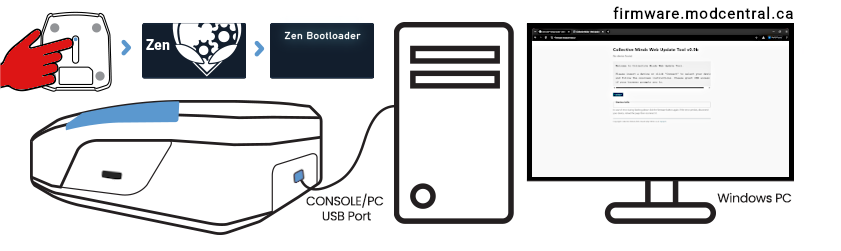
**Press** and **hold** the Cronus Zen’s blue **reset button**.
PC Connection via CONSOLE/PC USB Port
{% endstep %}
{% step %}
Plug your Cronus Zen into a computer using the **CONSOLE/PC USB** port.
{% endstep %}
{% step %}
The OLED screen displays **Zen Bootloader.**
{% endstep %}
{% step %}
In Zen Studio, navigate to **Tools > Online Firmware Update**,\
or visit **firmware.modcentral.ca** directly.
{% endstep %}
{% step %}
Click **Connect**, select **Cronus ZEN**, then click **Connect** again.
If the Cronus Zen does not appear as shown above, make sure it is in **Bootloader Mode** and connected to the top USB port.
{% endstep %}
{% step %}
Click **Latest.**\
The firmware update will begin automatically and complete in approximately 20 seconds.
{% endstep %}
{% endstepper %}