# Wireless
Follow the steps below to set up your console and controller via Bluetooth or a wireless adapter.
Wireless Support
***
The chart indicates which controllers support Bluetooth and which do not.\
Xbox® controllers do not support Bluetooth with Cronus Zen, but they are compatible using the Xbox® Wireless Adapter.
USB
BT
ADAPTER
DualSense™
YES
YES*
N/A
DualSense Edge™
YES
YES*
N/A
DualShock®4
YES
YES
N/A
Xbox® (All models)
YES
NO
YES**
Nintendo Switch® (All models)
NO
YES
N/A
Astro® C40
YES
NO
YES
***\*Bluetooth does not support Adaptive Triggers, Rumbles, Gyroscope, or Mic***
***\*\*Wireless Xbox Series X|S® & Xbox One® controllers require the*** [***Xbox® Wireless Adapter***](https://cronus.shop/products/xbox-one-wireless-adapter)***.***
## Xbox® (Wireless Adapter)
***
Any Xbox® controller can be used wirelessly on an Xbox Series X|S® or Xbox One® console (MATCHED), or on another supported console such as PS5® (CROSSOVER).
#### MATCHED Setup
1. Connect the **Xbox® Wireless Adapter** to **A3**.
2. Connect the Xbox® controller to **A2** using a USB cable.
3. Wait a few seconds, then disconnect the USB cable from **A2**.
The wireless adapter LED will begin blinking. When it turns solid white, the controller is successfully paired with the Zen.
#### CROSSOVER Setup
Follow the same steps as MATCHED, with one additional requirement:
• Connect the **authentication (AUTH) controller** that matches the console to **A1**.
**Example:**\
When gaming on a PS5® using an Xbox Elite Series 2 controller:\
• Connect a PS5 DualSense controller to **A1** (AUTH).\
• Pair the Xbox controller to the Xbox Wireless Adapter connected to **A3**.
## PlayStation® (Bluetooth)
***
#### MATCHED Setup
1. Press the **P2 Bluetooth pairing button** on the Zen.\
The RGB LEDs will flash blue, indicating pairing mode.
2. On the DualSense® or DualShock®4 controller, hold **SHARE + PS** (DualShock 4) or **Create + PS** (DualSense) until the light bar begins flashing.
When pairing is successful, both the controller light bar and the Zen RGB LEDs will turn solid blue.
#### CROSSOVER Setup
Follow the same steps as MATCHED, with one additional requirement:
• Connect the **authentication (AUTH) controller** that matches the console to **A1**.
**Example:**\
When gaming on a PS5® using an Xbox Elite Series 2 controller:\
• Connect a PS5 DualSense® controller to **A1** (AUTH).\
• Pair the Xbox controller to the Xbox® Wireless Adapter connected to **A3**.
## Switch Wireless Pro (Bluetooth)
***
Any Nintendo Switch Pro Controller can be used wirelessly on a Nintendo Switch console (MATCHED), or on another supported console such as PS5® (CROSSOVER).
#### Bluetooth Pairing
1. Press the **P2 Bluetooth pairing button** on the Zen.\
The RGB LEDs will flash blue, indicating pairing mode.
2. On the Switch Pro Controller, press and hold the **SYNC button** until the player LEDs begin flashing.
When pairing is successful, the player LEDs and the Zen RGB LEDs will stop flashing and remain solid.
## Switch Joy-Cons (Bluetooth)
***
Nintendo Switch Joy-Con controllers can be used wirelessly on a Nintendo Switch console (MATCHED), or on another supported console such as PS5® (CROSSOVER).
{% stepper %}
{% step %}
Connect Cronus Zen to a computer using the **PROG USB port**.
{% endstep %}
{% step %}
In **Zen Studio**, go to **Device Panel** and set **Emulator Output Protocol** to **Nintendo Switch**.
Pair the Left and Right Joy-Con controllers individually.
{% endstep %}
{% step %}
Connect the Cronus Zen to the Switch TV Dock using the **CONSOLE/PC USB port**.
**Note:** Handheld mode (without TV Dock) requires a USB-C OTG adapter.
{% endstep %}
{% step %}
Press the Zen’s **P2 Bluetooth pairing button** until the RGB LEDs flash blue.
{% endstep %}
{% step %}
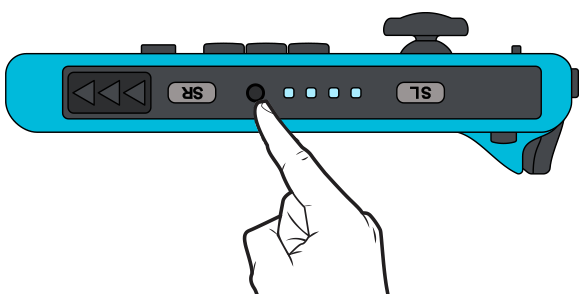
Press and hold the **Left Joy-Con SYNC button** until the player LEDs begin flashing.\
After a few seconds, the Zen RGB LEDs will turn red and the Joy-Con will vibrate.
{% endstep %}
{% step %}
Press and hold the **Right Joy-Con SYNC button**. After a few seconds, the Joy-Con will vibrate.
{% endstep %}
{% endstepper %}
{% hint style="info" %}
A powered USB hub with a 5V auxiliary power input is recommended. Connect the hub to your PC or Mac, then connect the Zen to the hub.
This configuration helps prevent PS5® disconnections, pairing failures, input lag, loss of vibration, and adaptive trigger issues.
{% endhint %}