> For the complete documentation index, see [llms.txt](https://guide.cronuszen.com/llms.txt). Markdown versions of documentation pages are available by appending `.md` to page URLs; this page is available as [Markdown](https://guide.cronuszen.com/zen-it/avvio-rapido-e-download/fase-3-compatibilita-del-controller/usb.md).
# USB
Configura la tua console e il controller tramite USB.\
Ci sono due modi per farlo — scegli quello che corrisponde alla tua situazione.
| Variante | Quando usarlo |
| ------------- | -------------------------------------------------------------------------------- |
| **Abbinato** | Il tuo controller corrisponde alla tua console. La configurazione più semplice. |
| **Crossover** | Vuoi usare un controller di una piattaforma diversa da quella della tua console. |
***
### :desktop: Prima di iniziare
Entrambe le configurazioni richiedono prima l'impostazione del protocollo di uscita. Collega Cronus Zen™ a un PC Windows® usando la **PROG USB** porta, quindi imposta il protocollo per la tua console.
| Console | Protocollo di uscita |
| -------------------- | --------------------------------------------------------- |
| **PlayStation®5** | Consulta la guida di configurazione dedicata per PS5® |
| **PlayStation®4** | **Zen Studio → Pannello dispositivo →** `PlayStation 4/5` |
| **Xbox®** | **Zen Studio → Pannello dispositivo →** `Xbox One X/S` |
| **Nintendo Switch®** | **Zen Studio → Pannello dispositivo →** `Nintendo Switch` |
| PC | **Zen Studio → Pannello dispositivo →** `AUTO` |
{% hint style="info" %}
Nintendo Switch® richiede impostazioni aggiuntive della console. Consulta la pagina Nintendo Switch®.
{% endhint %}
***
### :gamepad-modern: Abbinato
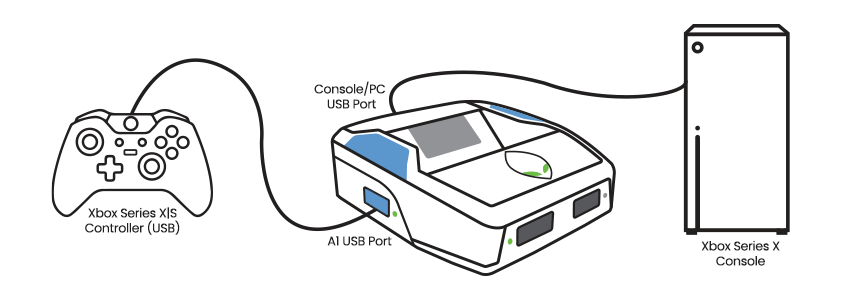
Controller Xbox Series X|S® su una Xbox Series X®
Supporta le console PlayStation®4, Xbox® e Nintendo Switch® con i loro controller.
{% stepper %}
{% step %}
#### Collega lo Zen alla console
Usa il **CONSOLE/PC USB** cavo. Si consiglia il cavo corto.
{% endstep %}
{% step %}
#### Collega il controller
Collegalo alla porta USB di Zen **A1** USB. Dopo alcuni secondi, il controller si accende e si sincronizza con Cronus Zen™.
{% endstep %}
{% step %}
#### Provalo
Verifica nel gioco che tutti i pulsanti funzionino.
{% endstep %}
{% endstepper %}
***
### :shuffle: Crossover
Usa un controller di una piattaforma su una console di un'altra. Supporta le console PlayStation®, Xbox® e Nintendo Switch®.
Il crossover richiede due controller collegati contemporaneamente:
DualSense™ PS5® su Xbox Series X|S®
| Porta | Controller |
| ------ | --------------------------------------------------------------------------------------- |
| **A1** | Il controller che corrisponde alla console — il **controller di autenticazione (AUTH)** |
| **A3** | Il controller con cui vuoi effettivamente giocare |
{% stepper %}
{% step %}
#### Collega lo Zen alla console
Usa il **CONSOLE/PC USB** porta.
{% endstep %}
{% step %}
#### Collega il controller AUTH ad A1
Nell'esempio sopra, è il controller Xbox®. Deve rimanere connesso per tutto il tempo in cui usi il controller crossover.
{% endstep %}
{% step %}
#### Collega il controller crossover ad A3
Nell'esempio sopra, è il DualSense™ PS5®.
{% endstep %}
{% step %}
#### Provalo
Verifica nel gioco che tutti i pulsanti funzionino.
{% endstep %}
{% endstepper %}
---
# Agent Instructions
This documentation is published with GitBook. GitBook is the documentation platform designed so that both humans and AI agents can read, navigate, and reason over technical content effectively. Learn more at gitbook.com.
## Querying This Documentation
If you need additional information that is not directly available in this page, you can query the documentation dynamically by asking a question.
Perform an HTTP GET request on the current page URL with the `ask` query parameter, and the optional `goal` query parameter:
```
GET https://guide.cronuszen.com/zen-it/avvio-rapido-e-download/fase-3-compatibilita-del-controller/usb.md?ask=&goal=
```
`ask` is the immediate question: it should be specific, self-contained, and written in natural language.
`goal` is optional and describes the broader end goal you are ultimately trying to accomplish on behalf of the user. GitBook uses it to tailor the answer towards what is most useful for that goal.
The response will contain a direct answer to the question and relevant excerpts and sources from the documentation.
Use this mechanism when the answer is not explicitly present in the current page, you need clarification or additional context, or you want to retrieve related documentation sections.